How to Speed Up Old Laptop Windows: The Ultimate IT Guide
Does it feel like you could brew an entire pot of coffee in the time it takes your computer to boot up? Trust me, you aren’t the only one. Millions of people deal with agonizingly sluggish performance as their devices get older. If you’ve been searching for ways to figure out how to speed up old laptop Windows systems, you have finally landed in the right place.
Before you toss your current machine into the recycling bin and drop thousands of dollars on a brand-new device, know this: most of that annoying performance drop is completely reversible. By combining some basic software cleanup with a few advanced, IT-level tweaks and minor hardware upgrades, you can dramatically breathe new life into your machine.
Throughout this guide, we’re going to cover exactly how to optimize your Windows performance. We’ll explore everything from quick built-in settings you can toggle right now to the hands-on hardware modifications that IT professionals rely on every single day.
Why You Need to Speed Up Old Laptop Windows Devices
Before diving into a slow Windows PC fix, it helps to understand why this frustrating slowdown happens in the first place. Contrary to popular belief, computers don’t naturally get slower just because they age. Instead, it’s the shifting software environment and degrading hardware conditions that drag things down.
Month after month, Windows quietly hoards hidden background processes, temporary files, and messy registry entries. All of this accumulated software bloat forces your processor to work twice as hard just to keep up. Throw in the fact that modern applications demand far more system resources than they did a few years ago, and you have a perfect recipe for a sluggish system.
On the hardware side of things, you’re usually looking at two main culprits. First, traditional mechanical Hard Disk Drives (HDDs) physically wear out. They simply can’t keep up with the massive number of Input/Output Operations Per Second (IOPS) that modern operating systems demand. Second, dust inevitably builds up inside your laptop’s chassis, suffocating the internal airflow. This triggers thermal throttling—a built-in self-preservation reflex where your CPU intentionally throttles its own speed so it doesn’t melt itself.
How to Speed Up Old Laptop Windows Instantly
Need to quickly speed up an old Windows laptop without busting out the screwdriver? Follow these essential software-based steps to reclaim those precious system resources right now.
- Disable Startup Programs: Hit
Ctrl + Shift + Escto pull up your Task Manager. Head over to the “Startup” tab and disable any non-essential apps that are trying to launch the moment you turn on your PC. - Uninstall Bloatware: Make your way to Settings > Apps. Take a few minutes to remove unused applications, annoying pre-installed manufacturer bloatware, and any old games that are just sitting there eating up your storage space.
- Enable Storage Sense: Head into Settings > System > Storage and toggle on Storage Sense. This incredibly handy feature works in the background to automatically clear out temporary files and empty your recycle bin, keeping your drive squeaky clean without any extra effort on your part.
- Adjust Power Settings: Change your current power plan from “Balanced” to “High Performance.” Doing this stops Windows from aggressively downclocking your CPU speed just to save a few minutes of battery life.
- Turn Off Visual Effects: Type “Advanced System Settings” into your Start menu search bar. Once open, find the Performance tab and select “Adjust for best performance.” This strips away those heavy window animations and transparency effects that constantly drain your processing power.
Advanced Solutions: An IT Pro’s Perspective
Sometimes, surface-level software tweaks just aren’t enough to get the job done. When that happens, it’s time to roll up your sleeves and look under the hood. Here are the most effective, hands-on technical solutions to bring an aging machine back from the brink.
1. Perform an SSD Upgrade for Laptop
If your current laptop is still chugging along on a clunky mechanical hard drive, an SSD upgrade for laptop setups is hands down the single most impactful change you can possibly make. Because Solid State Drives use modern flash memory, they run up to 10 times faster than those old-school traditional HDDs.
Making the jump to an SSD completely shatters your system’s storage bottleneck. You can look forward to near-instant boot times, snappy application launches, and remarkably faster file transfers. To make the switch, you can easily clone your existing Windows drive using software like Macrium Reflect, or just perform a fresh, clean install to get the absolute best results.
2. Increase System RAM
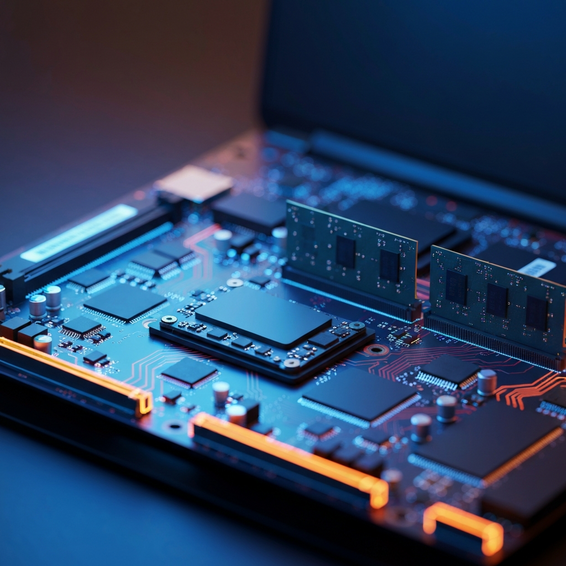
Whenever your computer runs out of Random Access Memory (RAM), Windows is forced to dip into its virtual memory. This process essentially uses your storage drive as overflow space for your RAM, which is a catastrophically slow workaround. If your laptop is currently limping along with just 4GB or 8GB of RAM, bumping that up to 16GB will transform how your machine handles multitasking.
Not sure if you need more memory? Open up Task Manager and check your current usage under the Performance tab. If you notice that it consistently hovers above 80% while you’re just doing your normal daily tasks, a RAM upgrade should be at the top of your to-do list.
3. Debloat Windows via PowerShell
Straight out of the box, Windows 10 and 11 come packed with heavy telemetry services, Cortana background tasks, and forced app installations that nobody really asked for. If you consider yourself an advanced user, you can utilize PowerShell scripts to aggressively strip out this bloat.
Trusty open-source scripts like Windows10Debloater can be launched through an elevated PowerShell prompt to clean house. They will automatically block telemetry tracking, disable annoying scheduled tasks that chew through your CPU cycles, and delete unneeded default apps. The end result? A massive chunk of freed-up processing power and memory.
4. Clean the Fans and Repaste the CPU
As we touched on earlier, thermal throttling will absolutely destroy your system’s performance. After years of heavy use, the factory thermal paste inside your laptop inevitably dries out, losing its ability to transfer heat. By simply opening up the laptop casing, blowing out the heatsink dust with some compressed air, and applying a fresh dab of thermal paste to your CPU and GPU, you can drastically drop those operating temperatures.
Why does this matter? Because cooler components are able to sustain higher clock speeds for much longer periods. Ultimately, this translates to a massive, noticeable performance bump whenever you throw a heavy workload at your machine.
Best Practices for Maintaining Windows Performance
Once you’ve successfully optimized your machine, keeping it running at lightning speed requires sticking to a few ongoing best practices.
- Rely on Windows Defender: Those heavy, third-party antivirus suites are notorious for hogging system resources. For the vast majority of users, the built-in Windows Security suite is incredibly capable and operates with a significantly smaller performance footprint.
- Keep Drivers Updated: Running outdated chipset or graphics drivers is a fast track to compatibility issues and system lag. Make it a habit to regularly check your manufacturer’s support page to download the latest BIOS and driver updates.
- Restart Regularly: Simply putting your laptop to sleep at night does not clear out the system memory. A full, proper restart flushes your RAM completely and puts a stop to any weird zombie processes lingering in the background.
Recommended Tools and Resources
To make your optimization journey a little smoother, here is a curated list of highly recommended tools that IT professionals use all the time:
- Crucial System Scanner: This is a brilliant, free web tool that quickly scans your motherboard. It tells you exactly what RAM and SSD hardware upgrades will actually fit your specific laptop model.
- BleachBit: Think of this as an open-source, ultra-lightweight alternative to CCleaner. It safely wipes away junk files without bogging you down with aggressive software upselling or shady background monitoring.
- Revo Uninstaller: This app is absolutely perfect for getting rid of stubborn software. It meticulously scans your registry and deep file directories to guarantee that absolutely zero leftover junk remains after an uninstallation.
- O&O ShutUp10++: A fantastic portable utility that hands you granular, straightforward control over Windows telemetry, privacy settings, and annoying background services.
Frequently Asked Questions (FAQ)
Will a factory reset make my Windows laptop faster?
Absolutely. Taking the plunge and performing a factory reset—or a totally clean installation of Windows—wipes away years of accumulated software bloat, corrupted registry files, and potentially hidden malware. Frankly, it remains one of the absolute best ways to restore an older laptop to its original, out-of-the-box snappy speed.
Does upgrading RAM speed up an old laptop?
It definitely will, provided you are currently running out of memory on a regular basis. If your system is relying heavily on the paging file (that sluggish virtual memory we mentioned earlier), slotting in more RAM will immediately stop the laptop from stuttering when you have two dozen browser tabs and multiple apps open at once.
Should I upgrade a 10-year-old laptop?
If your machine is a full decade old, the underlying processor architecture is likely just too obsolete to handle modern software smoothly. That holds true even if you throw in a fancy new SSD and max out the RAM. In this specific scenario, you’re almost always better off investing your money in a new computer—or, if you want a fun project, installing a lightweight Linux distribution instead of sticking with Windows.
Conclusion
Ultimately, figuring out how to speed up old laptop Windows systems is an invaluable skill. Not only does it save you a significant amount of money, but it also spares you from daily frustration. By starting off with quick software fixes—like disabling those pesky startup apps and leaning on the Task Manager—you can immediately begin to claw back that lost performance.
If you’re chasing even more substantial gains, don’t be afraid to crack open the laptop case. Investing in a quick SSD upgrade and slotting in a bit more RAM stand out as the absolute most cost-effective ways to modernize an aging setup. As long as you stick to consistent maintenance and keep an eye on your thermal management, your trusty old laptop can easily continue to serve you well for years to come.
About the Author